

Clear pictures tell you what a camera can see. Software security is about who can get in, how problems are fixed and how long the system is supported.
You fit a camera, check the picture and start using it. From then on, you expect to open the app and see what is happening whenever you need to.
But a working picture cannot tell you everything. Is the camera still receiving security updates? Who else can open its recordings? And if you replace your phone or hand the camera to someone else, what happens to the old access?
The short answer
Look for a product that protects access, receives security fixes and has a clear support commitment. Then use the protections it provides: secure your sign-in, keep updates working and review who has access.
These jobs support one another. A strong password cannot repair a software flaw. Installing updates is not a substitute for reviewing who has access. The manufacturer and the owner each have a part to play.
You do not need to become a security specialist. You do need clear answers about how the product is maintained and a few checks you can actually carry out.
There is more to protect than the camera itself
The software running inside a camera is often called firmware. It helps the device operate, including capturing and handling its images.
A connected camera may also rely on an app, an account, your home or business network and online services. The app is how you interact with the system; the account helps determine who can sign in and what they can do. Online services can provide parts of the experience, depending on the product.
Security involves the whole system
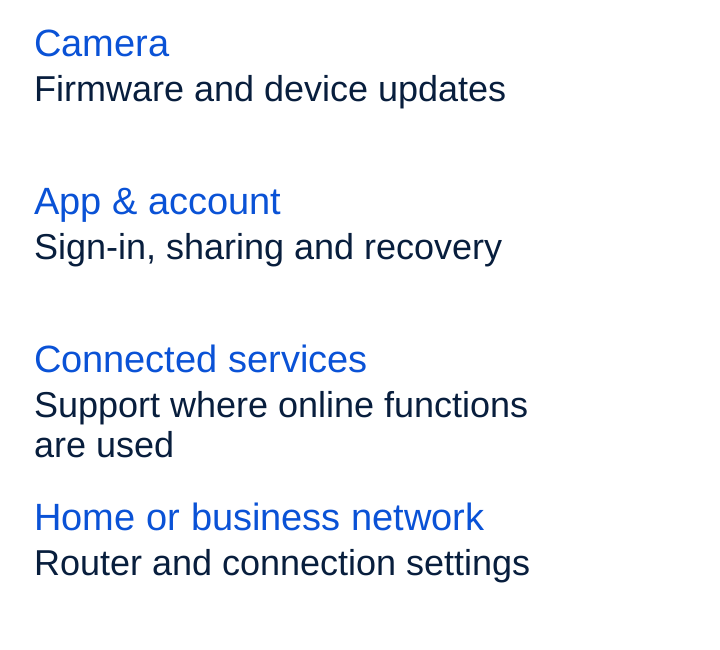
This is why “the camera is secure” is an incomplete answer on its own. Ask which parts are protected and maintained, including the account and any services needed for the functions you use.
Start with the way you sign in
If the service offers passkeys, use that option. A passkey lets you approve a sign-in using your device, for example with its screen lock, instead of typing a password.
If you use a password, make it unique to that account. A password manager can generate and store one for you. Reusing a password means that a leak at one service can put another account at risk.
Enable two-step verification where it is offered for password sign-ins. This adds another check, such as approval in an authenticator app, alongside the password. If the device itself has a separate default password, follow its instructions to replace it.
Check the recovery arrangements too. Keep your recovery details current and store any backup codes somewhere safe that you can reach if you lose your phone. Protect the email account used for recovery as carefully as the camera account.
Share access without sharing the main login
A partner may need to answer the door. A colleague may need to check a business entrance. Neither necessarily needs control over every setting or every other user's access.
Where the product supports it, invite each person through its sharing feature so they use their own account. Check what the invitation permits: live view, recordings, changing settings or inviting others. Give people the access they need.
Remove permissions when someone no longer needs them. At a small business, make this part of a colleague leaving or changing roles. At home, revisit it after a move, a change in household or a temporary arrangement.
A single login passed around a group makes individual access harder to manage. If separate access is important to you, check how it works before choosing the product.
Keep the app and the camera updated
Security updates can fix weaknesses found after a product was released. Keeping the device current is part of owning it, even when the picture still looks fine.
The app on your phone and the firmware in the camera are different pieces of software. Updating the app does not, by itself, confirm that the camera's firmware is current. Some apps help install camera updates; others show a separate update or version check. Follow the instructions for your exact model.
Enable automatic security updates where available and check any failed-update warnings. Keep your phone and router software supported and up to date as well. If an update will interrupt recording or access, use the manufacturer's guidance to plan for that interruption.
The owner can keep updates enabled, but the supplier must provide the fixes and a trustworthy way to deliver them. A setting cannot create security support that the product no longer receives.
The maker has a role. So do you.
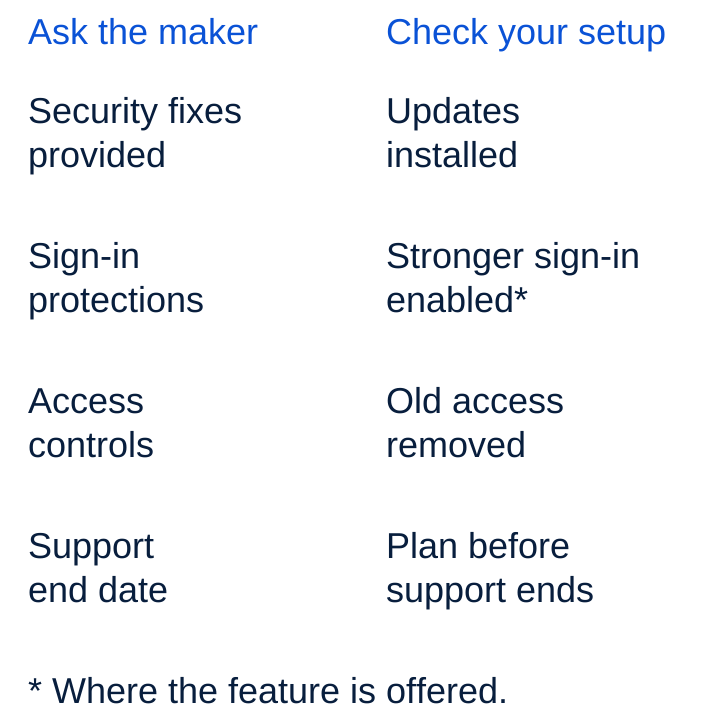
Ask how long security support lasts
Before buying, look for a clear security-support end date for the precise model and market. Check whether it is a fixed date for the model or a period calculated from an event such as purchase. A camera bought late in a product's life may have less support remaining than you expect.
“Regular updates” does not tell you when that commitment ends. Nor does the length of the hardware warranty answer the same question: a warranty and the availability of security fixes are different things.
Ask about the app and any online service the camera needs as well as the device. A useful product depends on more than the physical unit continuing to turn on.
Local storage still needs software security
Saving recordings on a memory card or recorder answers a question about where those recordings are stored. It does not, on its own, tell you who can access the system, whether remote viewing is enabled or how software problems are fixed.
For remote viewing, check which functions you need and which connections they require. If you do not need remote access, ask whether it can be disabled and what that changes. Depending on the product, doing so may affect alerts or integrations too.
Use the model's instructions or ask the provider for help with network settings. The useful aim is to avoid unnecessary access while keeping the functions you rely on working.
What changes when support ends?
A camera can carry on recording after its security-support period has ended. That does not mean it has suddenly been compromised. It does mean you should no longer assume that new security problems will receive a manufacturer fix.
Check the supplier's notice and your options before that date arrives. Consider the connections and services you use, whether any supported continuation is available and whether replacement is the sensible route. A new password or a factory reset does not replace missing security updates.
When selling, giving away or retiring a camera, follow the model-specific instructions for removing shared access, unlinking accounts, handling recordings and resetting the device. Do not assume that resetting the physical camera also removes every online connection or copy of a recording.
Security lasts beyond setup day
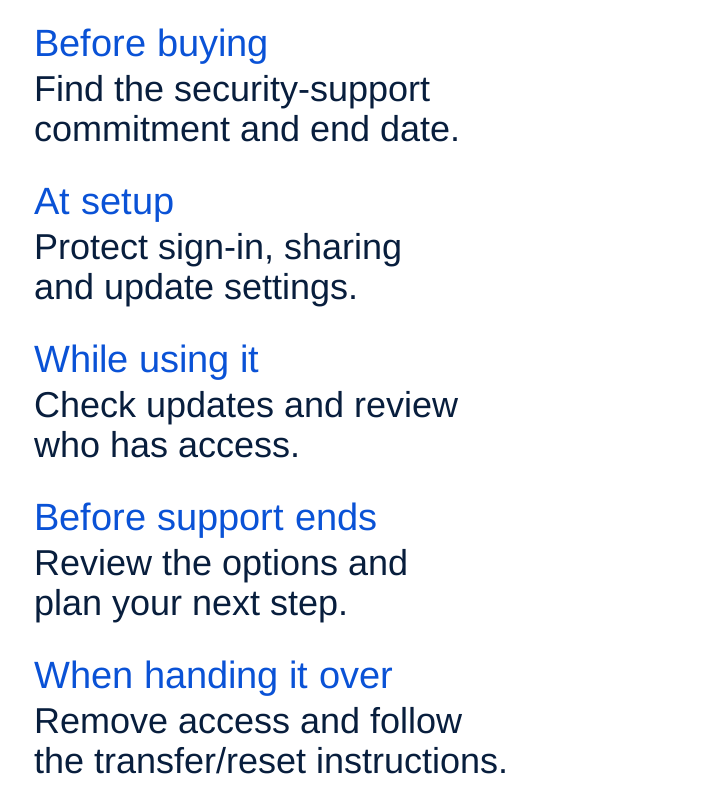
Six questions before you choose
- Until when will this exact model receive security updates, and how is that date calculated?
- How are camera updates installed, and how can I tell whether they succeeded?
- Which sign-in protections are offered, and how does account recovery work?
- Can people have separate access, with appropriate permissions that I can remove?
- Which functions need online services or remote access, including if recordings are stored locally?
- Where do I find security notices, support information and help if something goes wrong?
If you already own a camera, start with three checks: its support status, its update status and the people who can access it. Revisit those checks as you use it and whenever ownership or access changes.
The picture helps you understand what is happening in your space. The software, account controls and ongoing support deserve a place in the buying decision too.