

A useful camera alert helps you understand an event and decide what to do next. The number of notifications is only part of the story.
Someone walks along the pavement. A delivery arrives at your door. A colleague unlocks the shop before opening.
A camera might describe each of these as “person detected”. The description may be correct in all three cases. Whether you need an interruption depends on where it happened, when it happened and what you wanted to know.
That is the starting point for useful notifications: decide which events deserve your attention, then check how the camera and your phone handle them.
The short answer
A useful alert concerns something you want to know about, arrives while you can still make a useful decision and gives you enough context to check what happened.
Start with the entrance or activity that matters. Use the controls your product supports, then test both the events you want and the interruptions you hope to avoid. A quieter phone helps only if you still receive the events you meant to keep.
Detection, recording and notification are different
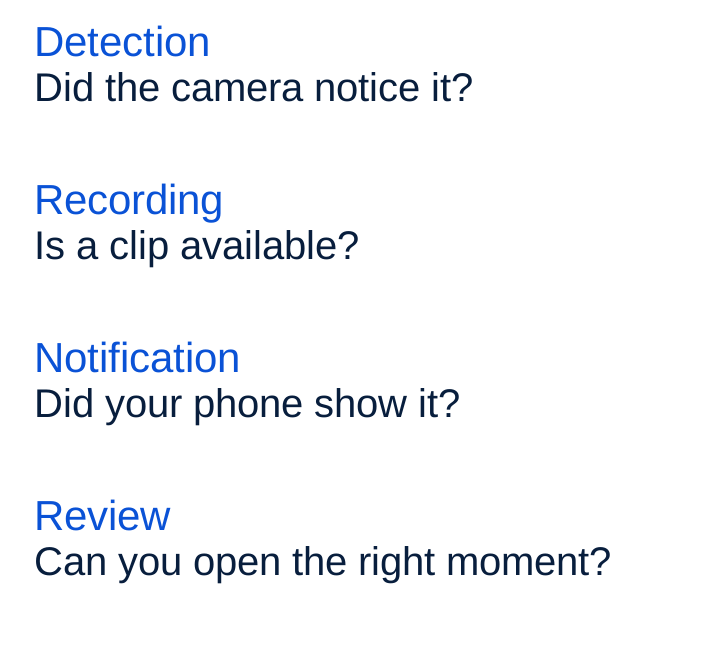
Detection means the camera system has picked up activity. It may also classify it, for example as a person. Recording saves footage. A notification is the message sent to your phone. Opening that message is another step: it should help you reach the event you need to check.
These functions can have separate settings and dependencies. A saved clip does not prove that a notification appeared on your phone. A quiet phone does not prove that nothing was recorded. Check each outcome separately before deciding what went wrong.
One event. Four checks.
The words “person detected” also have limits. A classification can be mistaken, and even a correct label does not tell you why someone is there. A customer, a neighbour and an unexpected visitor can all be people. You still need the context.
Start with the event you want to know about
“Tell me when someone approaches the front door” is a clearer starting point than “send fewer alerts”. It tells you which part of the view matters and gives you something practical to test.
At a shop entrance, you might expect people throughout the day but want to check arrivals after closing. That still includes harmless visits, such as a colleague collecting something. The time helps you decide when to look; it does not establish that something is wrong.
For a delivery, the useful moment may be the approach to the door. Check whether a notification takes you to that moment, a later live view or a recording that becomes available afterwards. If you need to speak to a visitor, test that route too.
Match the controls to your purpose
Look at the camera’s view before changing several settings. Does it cover the approach you care about? Is a busy pavement taking up most of the picture? Check the positioning and mounting guidance for your model before adjusting it.
Then consider the available controls. An activity zone may let you select an area, an event filter may select categories, and a schedule may change when you receive notifications. Sensitivity changes how a product responds to activity, but the same label can mean different things on different cameras.
If your product supports these controls, check both their intended effect and what you could miss.
What are you changing?
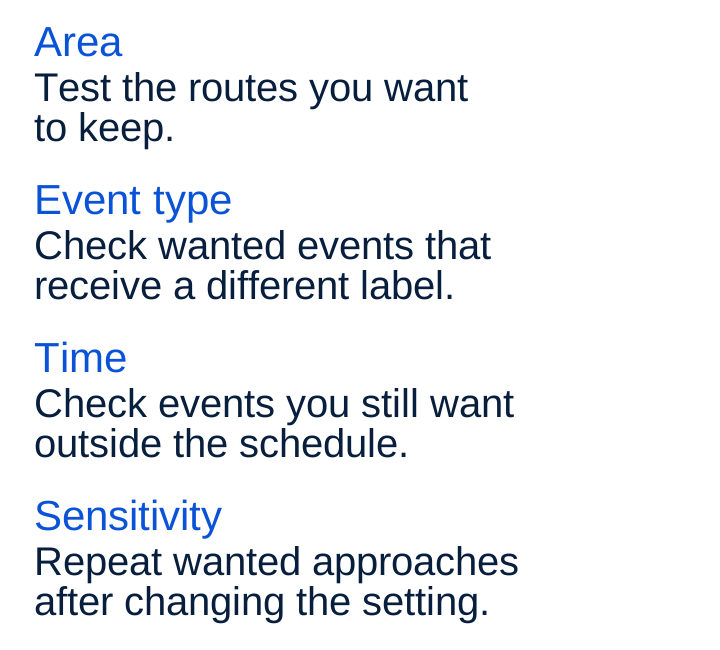
Change one setting at a time. If several settings change together, it becomes harder to understand which one removed an unwanted alert or caused a wanted event to disappear.
A notification zone is not a privacy mask
A zone used to select notifications does not necessarily stop the rest of the view being recorded. A privacy mask serves a different purpose: it hides a selected part of the picture where the product supports it. Its effect on detection and other processing needs a separate check.
Likewise, a schedule might pause phone notifications while recording continues, or it might control detection or the camera itself. Read what that particular setting changes. Check whether snoozing affects only your phone or other people sharing the camera as well.
Check the phone as well as the camera
When an expected alert does not appear, first look for the event in the camera app. If a recording is available, that gives you a different starting point from finding no event at all.
Check the camera app’s notification settings and the phone’s permission for that app. Depending on your phone, Focus or Do Not Disturb, scheduled summaries, battery settings and a connected watch can affect when or where you see a notification. No sound, no message on this screen and no delivered message are different observations.
Connection matters too. Check the product’s requirements for the camera, any connected services and the phone. Local recording does not, by itself, establish that phone alerts will work without internet access.
Test the phone as you normally use it, including with the screen locked. Follow the relevant instructions rather than switching off every battery or privacy control in the hope of solving the problem.
The next tap matters
A notification should help you answer a small set of questions: which camera, what happened and when? A useful preview may help you decide whether to open it, where previews are supported. The event time matters particularly if a message appears late or you return to it later.
Then try opening it. Can you reach the relevant clip or live view, and can you tell which one you are seeing? If there are several events close together, check that the message leads to the right one.
There is a privacy choice here too. A detailed lock-screen preview can reveal information to someone nearby. Check what the app sends and what your phone displays before choosing how much detail to show while locked.
Test what you want to keep
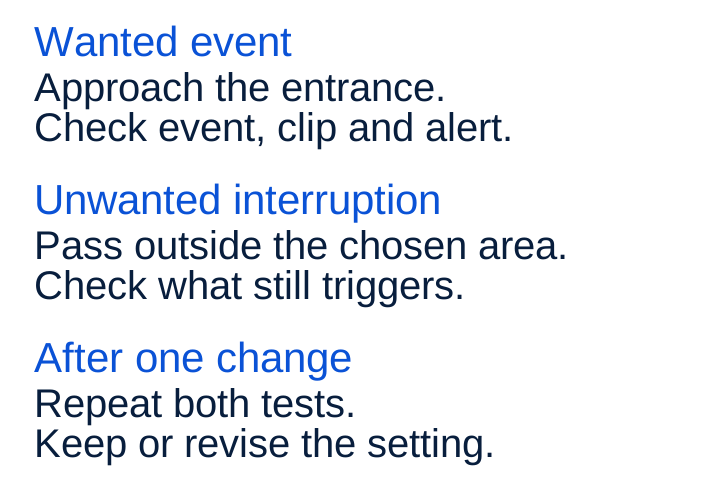
Use a harmless test with someone who knows what you are doing. Ask them to approach the entrance you want covered. Separately, try the sort of passing activity you would rather not be interrupted by.
After changing one setting, repeat both. Look for the event or clip in the app and check the notification on the phone. If the setup needs to work in the evening, include a relevant evening check. Review the view, zone and settings again after moving the camera.
Check both sides of the change.
Keep a brief note of what you changed and what happened. A wanted event that disappears matters just as much as an unwanted notification that stops. One successful test helps you understand the setup; it cannot promise that every future event will be detected or delivered.
Six questions before you choose
- Can it pick up the events I care about? Ask for a demonstration in a relevant view and lighting conditions, including approaches you want to keep.
- What does each control change? Separate notification filters, detection, recording, privacy masks and temporary pauses.
- What does the notification tell me? Check camera name, event time, classification and any available preview.
- What happens when I open it? Try the relevant recording, live view and conversation route where supported.
- What does it depend on? Check the exact model, app, phone, connection, power and any paid plan needed for the functions you want.
- What happens for other users? Check who receives alerts, which permissions they need and whether a pause or schedule affects them.
Start with one entrance and one event you want to know about. Set it up, test it and check the next tap. The useful result is a message that helps you understand what needs your attention.